
Task templates are created to help automate tasks to do certain actions based on a lead status and/or sub-status. This article will go over how to create new task templates based on your needs.
To find the task templates, go to Manage tab > Task Templates
- To add a new task template, go to "Add New" in the top right:
2. Next, you will need to fill out what exactly this task is for and what it should do. Example below:
- Summary - A summary of the task. The summary appears as the description of a task when assigned to a user, and as the subject line for task reminder emails. Merge codes can be added to the summary to automatically populate the text with a lead's information
- Task Type - The type of task (Action/Administrative, Contact/Follow Up, or Mailing)
- Enabled - Yes/No, if you want the template to be enabled and working in your system
- Details - The specific details about the task
3. Next, fill out the Creation Rules - what status should trigger this task, is it for a specific case type, etc.
- Associated Lead Status - The lead status you want this task to be associated with
- Case Type - The type of case (practice area) you want this task to be associated with (Default - All case types)
- Severity Level - The severity level you want this task to be associated with (Default - All Severity Levels)
- Offices - The office you want the task to be related to (Default - All offices)
- Opportunity Sources - the opportunity source you want the task to be related to (Default - All Opportunity Sources)
- Marketing Sources - the marketing source you want the task to be related to (Default - All Marketing Sources)
- Create When:
- Always - No specific condition needs to be met in order for this task to be assigned/completed
- When - A specific condition must be met in order for the task to be assigned/completed (Example - Mail a rejection letter when the "client does not have an email address")
4. Next, setup the triggers - when do you want this task to trigger? Multiple triggers may be selected by holding down CTRL + Click
- Create Trigger - These triggers will cause a task to be assigned based on the following criteria:
- Lead Created - Task assigned when a lead is created
- Status Changed - Task assigned when the status of the lead changes
- Substatus Changed - Task assigned when the substatus of the lead changes
- Note Added - Task assigned when there are notes added to a lead
- Settlement Entry Made - Task assigned when someone enters a settlement for the lead
- Estimated Value Entry Made - Task assigned when the estimated value of the settlement is entered
- Lead Form Sent - Task assigned when a lead form is sent to the lead
- Lead Form Received - Task assigned when a lead form is submitted by the lead
- Delete Incomplete Trigger - These triggers cause the task to no longer be assigned after it is initially created by a Create Trigger IF the following occur:
- Status Changed - Incomplete task is deleted if the status of the lead changes
- Substatus Changed - Incomplete task is deleted if the substatus of the lead changes
- Status Saved - Incomplete task is deleted if the status of the lead is saved (most applicable when the status of the lead does not change but is still saved)
- Note Added - Incomplete task is deleted if there is a note added to the lead
- Settlement Entry Made - Incomplete task is deleted if there is a settlement amount entered for the lead
- Estimated Value Entry Made - Incomplete task is deleted if there is an estimated settlement value entered for the lead
- Lead Form Sent - Incomplete task is deleted if a lead form is sent to the lead
- Lead Form Received - Incomplete task is deleted if a lead form is submitted by the lead
- Complete Trigger - These triggers will automatically make the task complete IF:
- Status Changed - Task completed when the status of the lead changes
- Substatus Changed - Task completed when the substatus of the lead changes
- Status Saved - Task completed when the status of the lead is saved (most applicable when the status of the lead does not change but is still saved)
- Note Added - Task completed when a note is added to the lead
- Settlement Entry Made - Task completed when the settlement amount is entered for the lead
- Estimated Value Entry Made - Task completed when there is an estimated settlement value entered for the lead
- Lead Form Sent - Task completed when a lead form is sent to the lead
- Lead Form Received - Task completed when a lead form is submitted by the lead
5. Complete the Assignment section - who will complete this task and when?
- Assign to - Assign the task to a specific role or a user
- Assign to Role/User - Depending on what you selected in Assign To, select the role or user this task should be assigned to
- When - When the task should be assigned (Now, or at a future time)
- When Condition Value - If a future time is selected, you must specify the the time here
- High Priority - List Before Other Tasks - Yes/No, if the task has a high priority and should be listed first, select "Yes"
- Play Notification Sound - A sound may notify someone to complete the task either once, until the task is complete, or never.
- Required before status change?
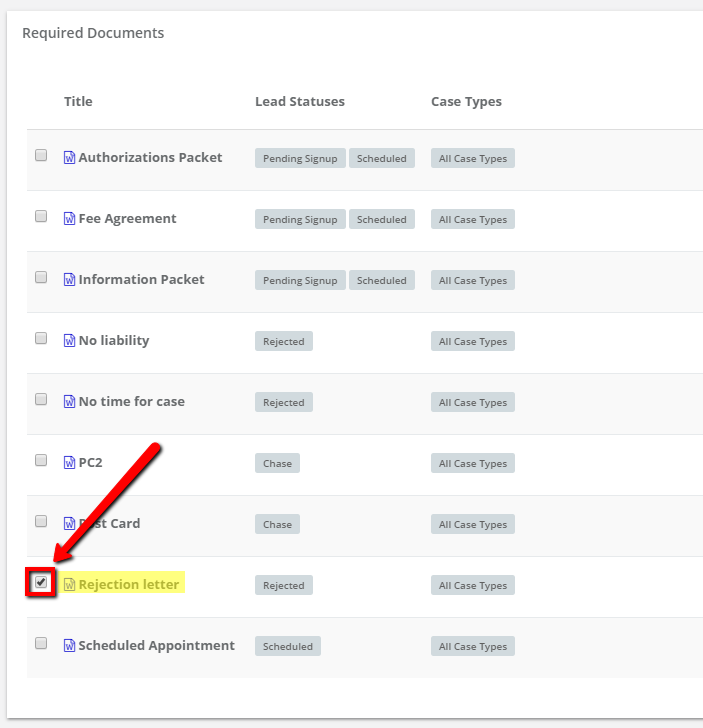
6. Choose any Required Document that you may want associated with the task - this is not absolutely necessary but useful for Rejected status if you need to send a Rejection Letter
7. Lastly, in the Other section, fill out remaining items:
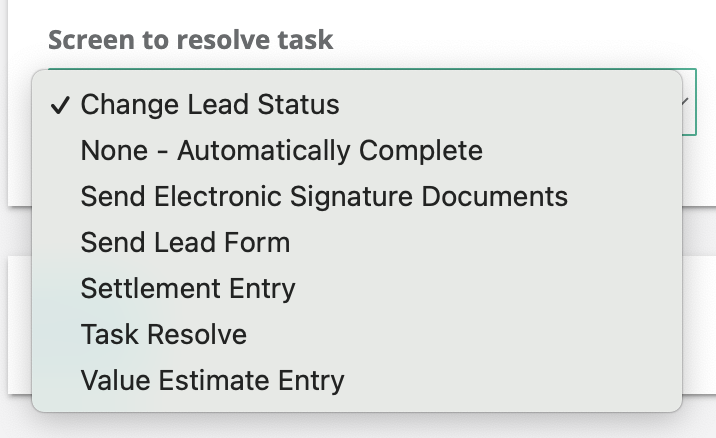
- Screen to Resolve Task - Select what action you want to mark this task as completed.
- Change Lead Status
- None – Automatically Complete (useful for tasks that you just want to send an email)
- Send Electronic Signature Documents – Useful for the Pending Signup / Electronic Signature status
- Send Lead Form - Allows you to send a lead form
- Settlement Entry – Allows you to enter an case value – useful on the Closed status
- Task Resolve – Allows you to chose Yes/No that you completed the step
- Value Estimate Entry – Allows you to enter an estimated value – useful on the Signed Up status
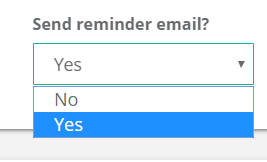
- Send Reminder Email? - Yes/No if you want to send a reminder email about completing the task.
- Send From - Where you want the reminder email to be sent from.

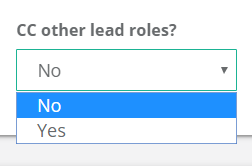
- CC other lead roles? - You can choose to CC any other roles associated with the lead.
8. Click Save
Comments
0 comments
Please sign in to leave a comment.