
Lead Statuses in Lead Docket are used to help firms properly track their leads based on the situation until it reaches a conclusion. Each status has unique tasks associated with it to ensure a lead does not get lost or forgotten about in the intake process.
Users with Admin permissions can create and edit statuses and substatuses in the Statuses section as well as edit/create new task templates for each status in the Task Templates section.
Change a Lead's Status
To change a lead’s status, navigate to the lead via the Leads section, search bar, or Intake Dashboard.
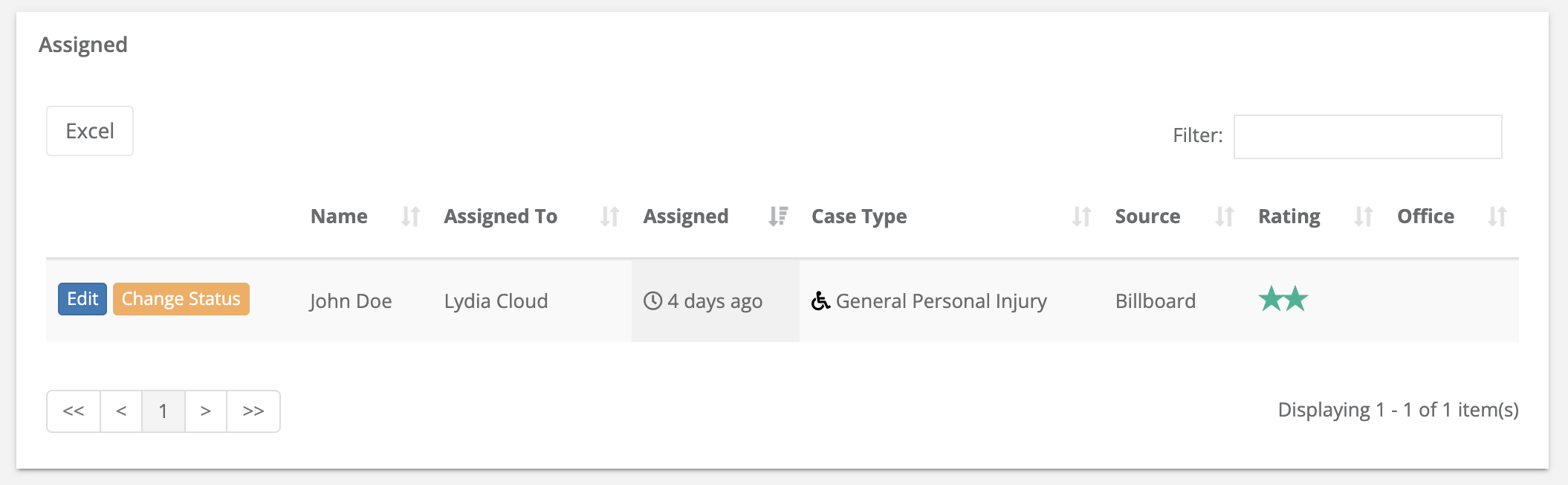
To change a lead’s status in the Leads section, click Change Status to the left of the lead.
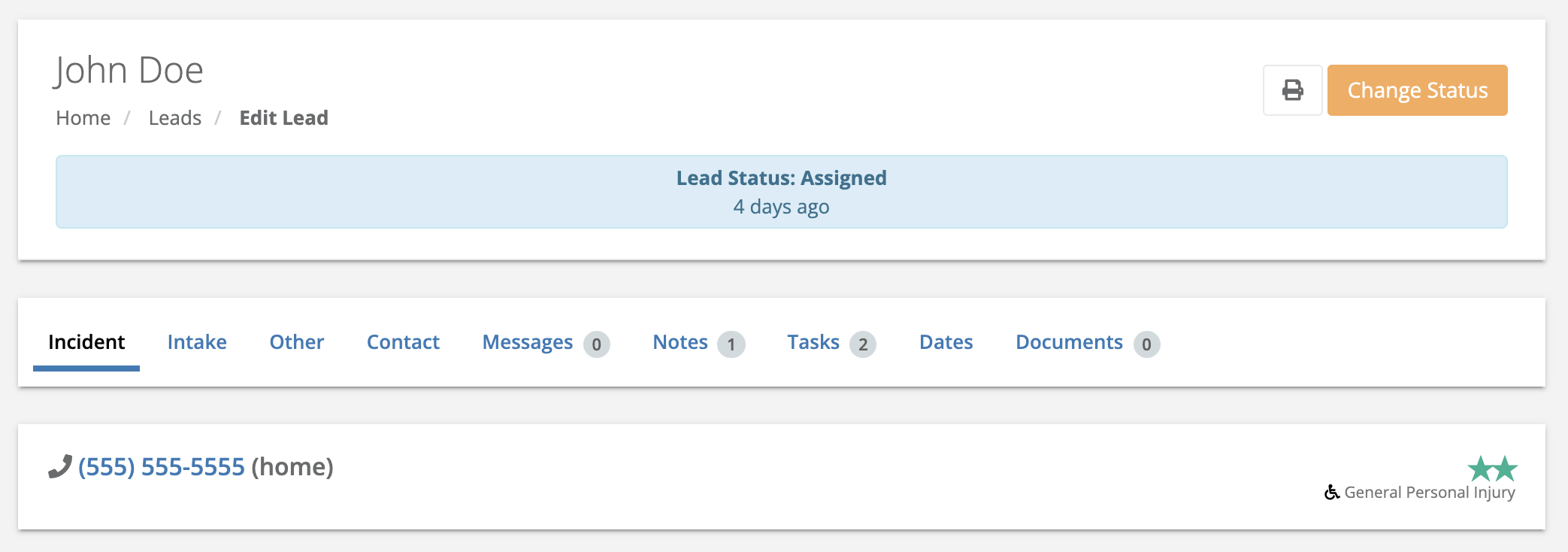
To change a lead’s status via search or in the Intake Dashboard, search for the lead you want to edit or locate it on the dashboard. Click the lead to open up the lead’s page. Then, click Change Status in the upper right-hand corner.
Default Lead Statuses
The list below are the DEFAULT Lead Statuses in Lead Docket. These may be edited at any time, however, the only statuses unable to be deleted are: Closed and Signed Up
| Status | Definition | Default Tasks |
| Assigned | Leads that are assigned to an attorney. Once the attorney speaks with the lead, the status will change. | Intake staff receive a task to follow up with the attorney if the status doesn’t change after 30 minutes. |
| Chase | Leads that your organization has contacted and not heard back from. After six chase attempts, the lead will move to the “Lost” status. | Intake staff receive follow-up tasks every four hours to continue the chase. |
| Under Review | Leads that are waiting on certain information, like a police report or medical records, in order to proceed. | Intake staff receive follow-up tasks every 14 days. |
| Hold | Leads that take a firm several months to decide on, like a Social Security Disability case. | Intake staff receive follow-up tasks every 30 days. |
| Scheduled | Leads that have a scheduled appointment with an employee. | Intake staff receive follow-up tasks to add the appointment to the calendar and to change the status after the appointment. |
Pending Signup
| Leads that must provide something to proceed, such as an electronic signature or their decision to sign up with your firm. | Intake staff receive follow-up tasks every five days. |
| Signed Up | Leads that have signed up to be your client. “Signed Up” leads will appear in the Open Cases page. Users can also export the new case to your case management system. | No tasks |
| Closed | Cases that are complete, typically meaning a settlement was reached. | Chosen staff receive a task to enter the settlement details into the system. |
Referred
| Leads that were referred out to another firm. | Intake staff receive a follow-up task to determine if the referred firm accepted the case. |
| Rejected | Leads that the intake staff or attorney decided not to take. | No tasks |
Lost
| Leads that your firm wanted, but ultimately lost. The client may have fired your firm, hired a different firm, or stopped contact. | No tasks |
Editing / Adding Lead Statuses
- Head to the Manage tab and Statuses
2. To add a new status go to the top right corner and click "+ New Status". From here you can choose what type of status you want to add to your Lead Docket.
- Standard - substatuses can be chosen in any order (Like Lost)
- Sequenced - substatuses will follow a specific order (like Chase)
- Scheduled - Requires a date, time, and location to be input (like Scheduled)
3. After you choose a status type, you can then give your status a Title, add substatuses, and choose how you want to view this status: as a Wanted lead, in the Quick Search, on the Dashboard
4. To edit a Lead Status that already exists, choose whichever status you want to change. You can edit the name of the status, add/delete substatuses, and change visibility on roles.
*NOTE: in order to delete any statuses in Lead Docket, you will need to first delete any and all tasks/messages associated with that status. If there are any leads associated with that status, Lead Docket will prompt you to move them to a different status.
Comments
0 comments
Article is closed for comments.